Import PLC Variables
Setting up Recipe Management requires just a few clicks since you can build upon all the data and variables that you've set up for our HMI in the Connect & Control Your PLC section. However, as you're are starting from scratch here, you must first create a PLC connection and import some variables.
1. Create a PLC Connection
An Actual PLC and the PLC Mode Are Required
It is not possible to save recipes using Placeholders for Offline Editing. You actually need to be connected to a PLC.
- Download & Start the
HELIO Playground PLC
Setting up a PLC that we can connect to sounds pretty complex, right?
The HELIO Playground PLC Has Got Your Back
It's a software-based demo PLC that you can download for free and run on your development computer right away. A handy tool when you want to learn how to connect HELIO to an industrial machine that communicates using OPC-UA.
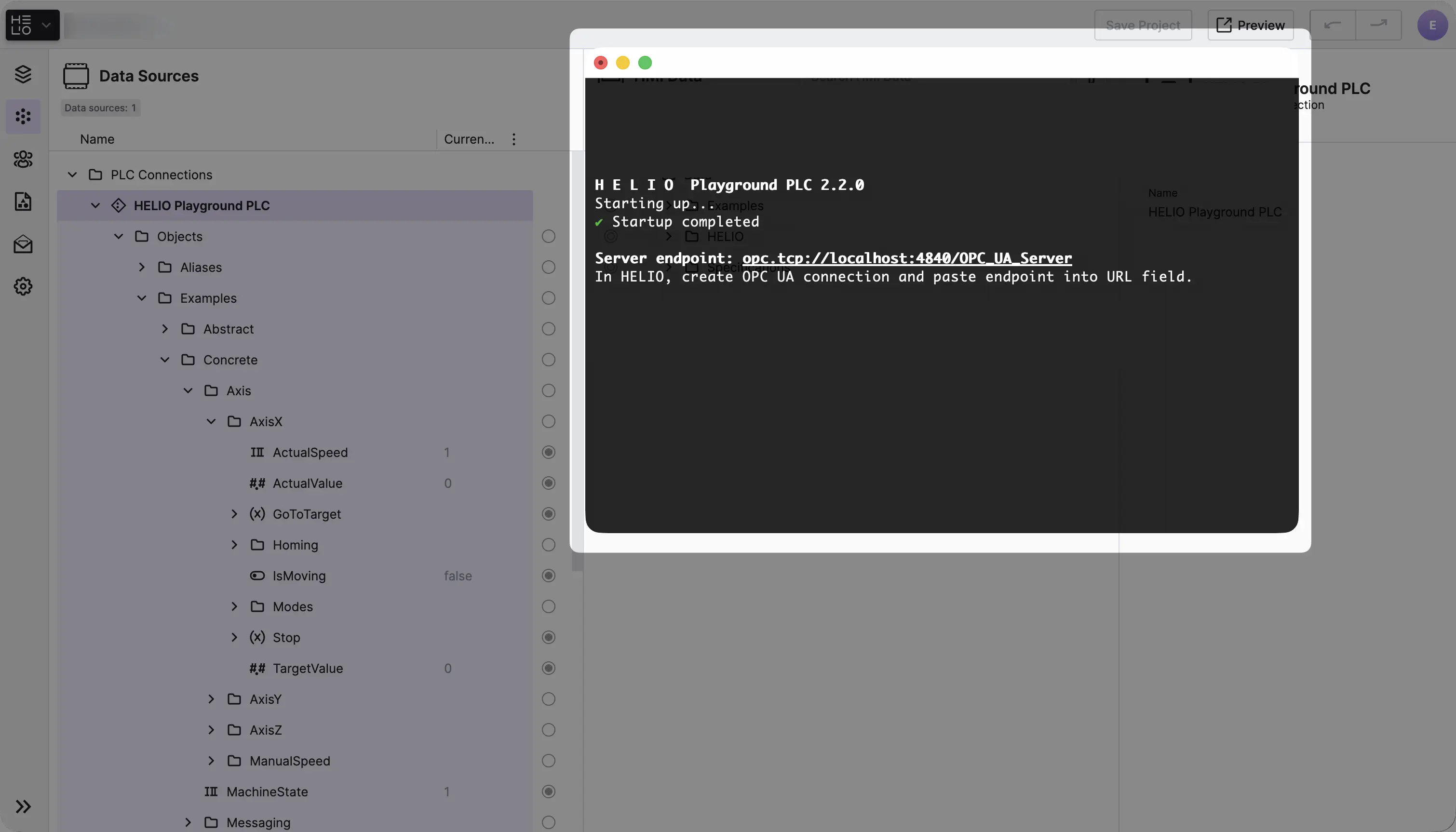
→ Download the latest version and start it.
- Add the Connection
Good job on getting the PLC set up and running. Let's keep going:
- If you haven't set up a new project just yet, now is a great time to Create a New Project.
- Open your new project in the Project Editor and switch to the Data View.
- In the
Data Source Explorer,
add a new OPC UA Connection,
rename it to
HELIO Playground PLC, and use the default settings.
The Right Name Is Important!
It is important to name the connection correctly and not to use the
default name, since the template — and thus all the variables it uses — was
created with HELIO Playground PLC as the connection name.
- Explore the Structure
Once you've got the connection all set up, feel free to take a look and explore the data tree of the HELIO Playground PLC.
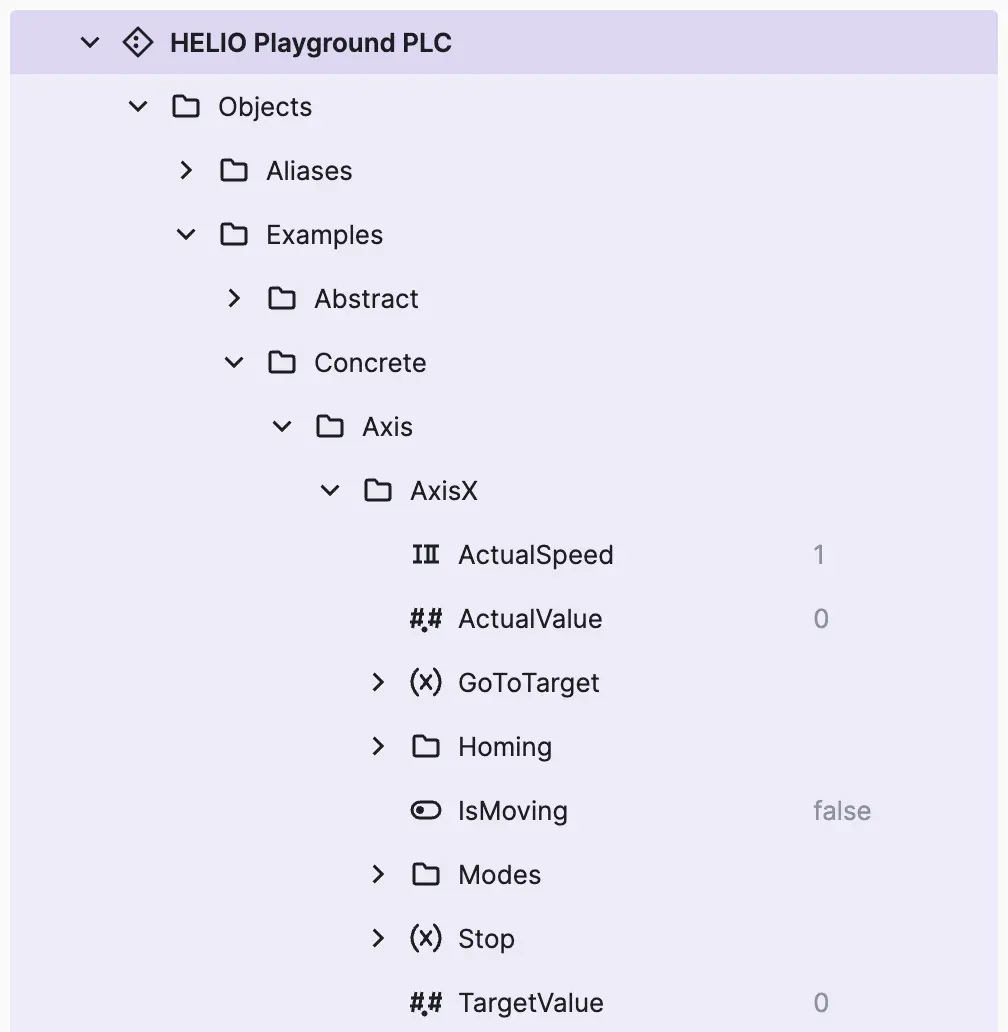
2. Import Variables
Next we need to import the variables we want to use in our recipe types. For this example we are going to use variables that already exist on our on our HELIO Playground PLC.
- Locate the
ForEveryoneFolder
Locate the folder in the Data Source Explorer.
You should find it under:
Objects > Examples > Abstract > ReadWrite > ForEveryone.
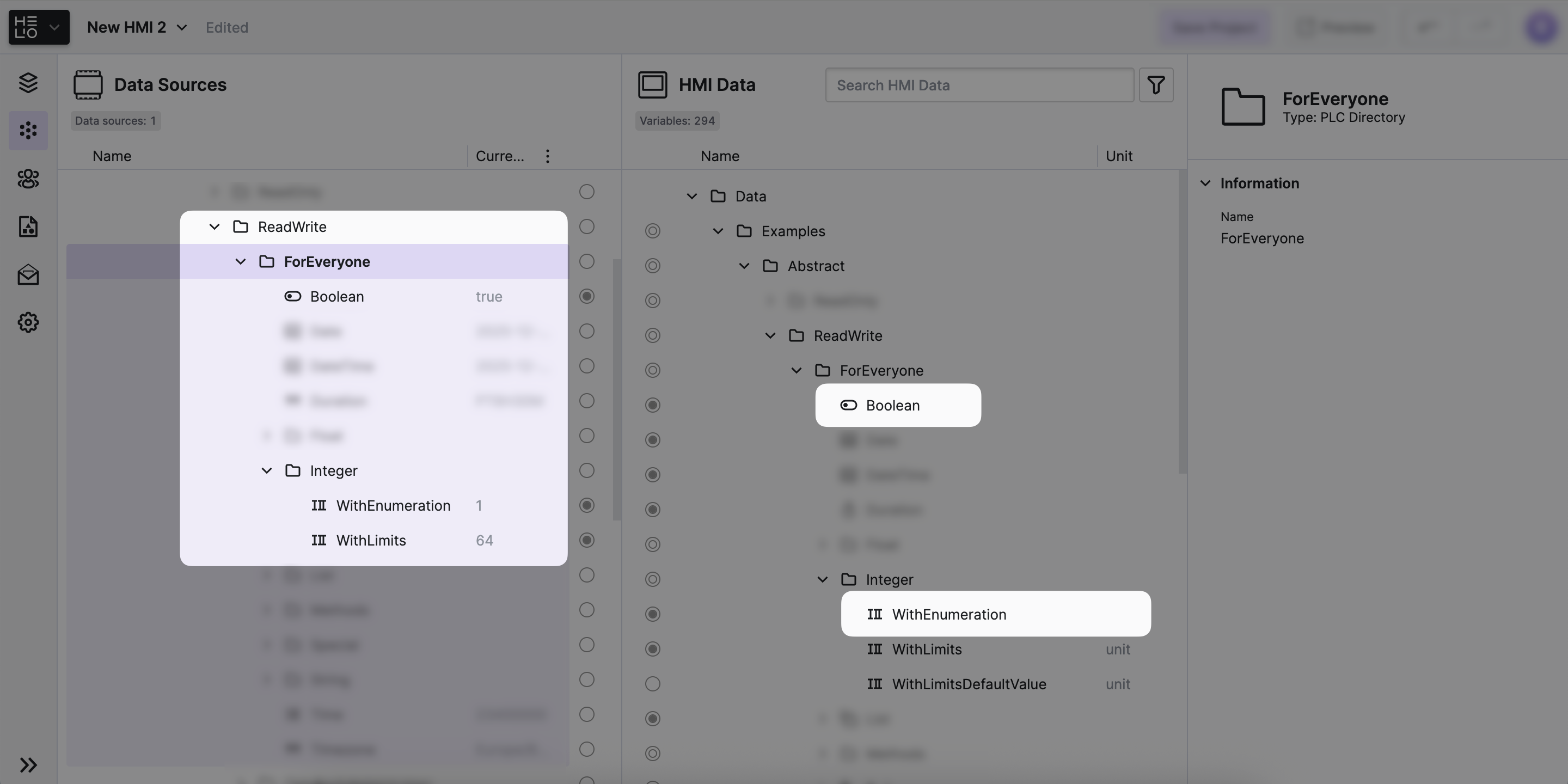
- Import the Variables
Let's import
the variables into your project so that we can use them in our
recipes. Let's import the Boolean and Integer > WithEnumeration
variables.
- Loosen Restrictions
To be able to write these variables, make sure that you relax the restrictions on the variables so that we can read and write them. Your Data Source Explorer should look something like this:

Now that you've got your data ready, it's time to define some recipe types.