Using the Parameter Table
New This Feature Was Added In HELIO 26.2.0
The Parameter Table, accessible from the
Recipe Management Page, gives you full access to all
parameters of a recipe — listed in a searchable table, with the current
PLC value shown right next to the stored recipe value.
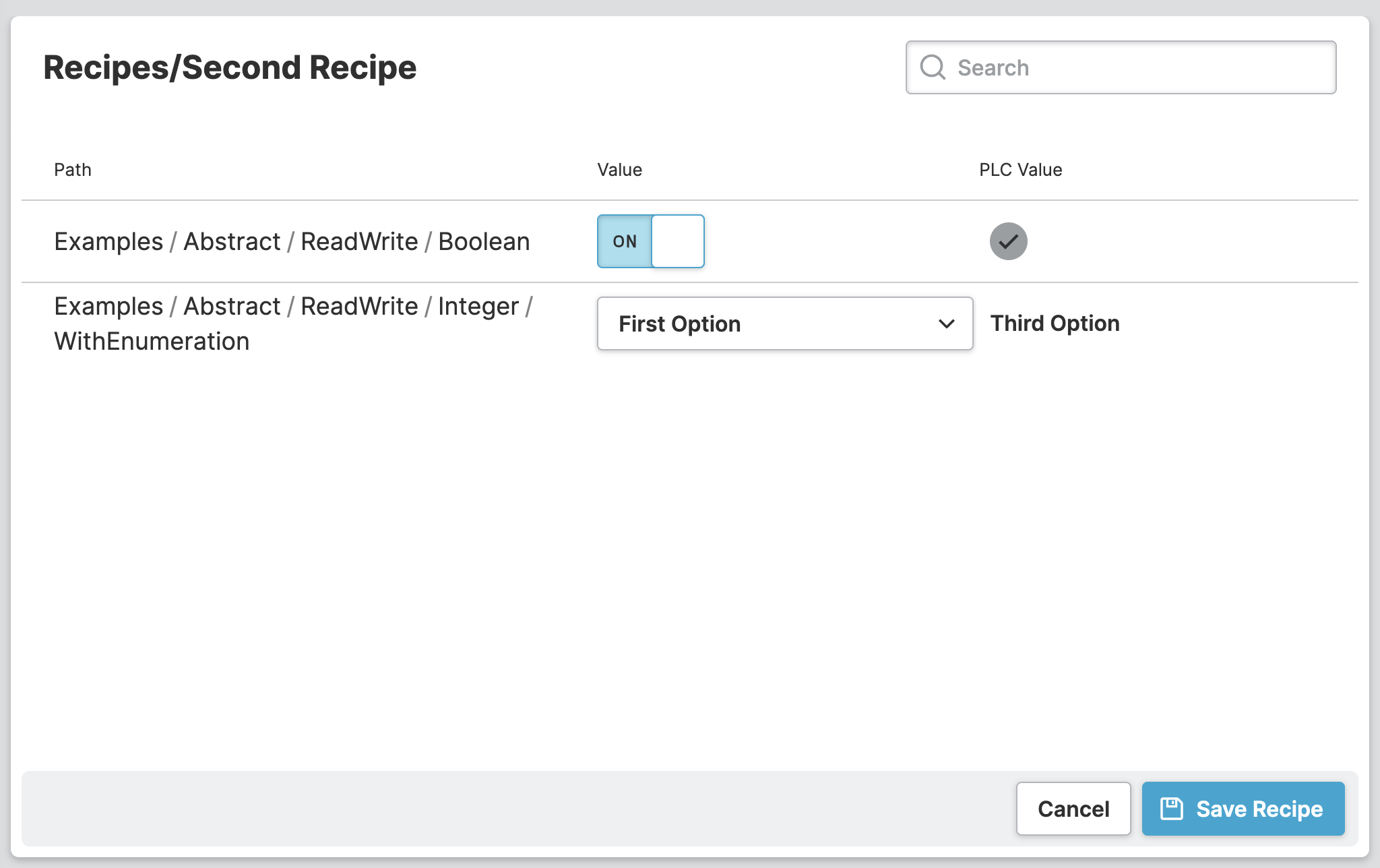
It's a useful tool during machine development and commissioning, or for service specialists who need to quickly scan and filter through every parameter. For smaller HMIs with only a few parameters per recipe, it can even work as the parameter editing page itself — fast to set up, and simple enough to hand to operators too.
1. Enable the Parameter Table
- Enable the Parameter Table
Select your Recipe Management Page and expand the
Parameter Table property group in the properties panel. Set
Enable to true.
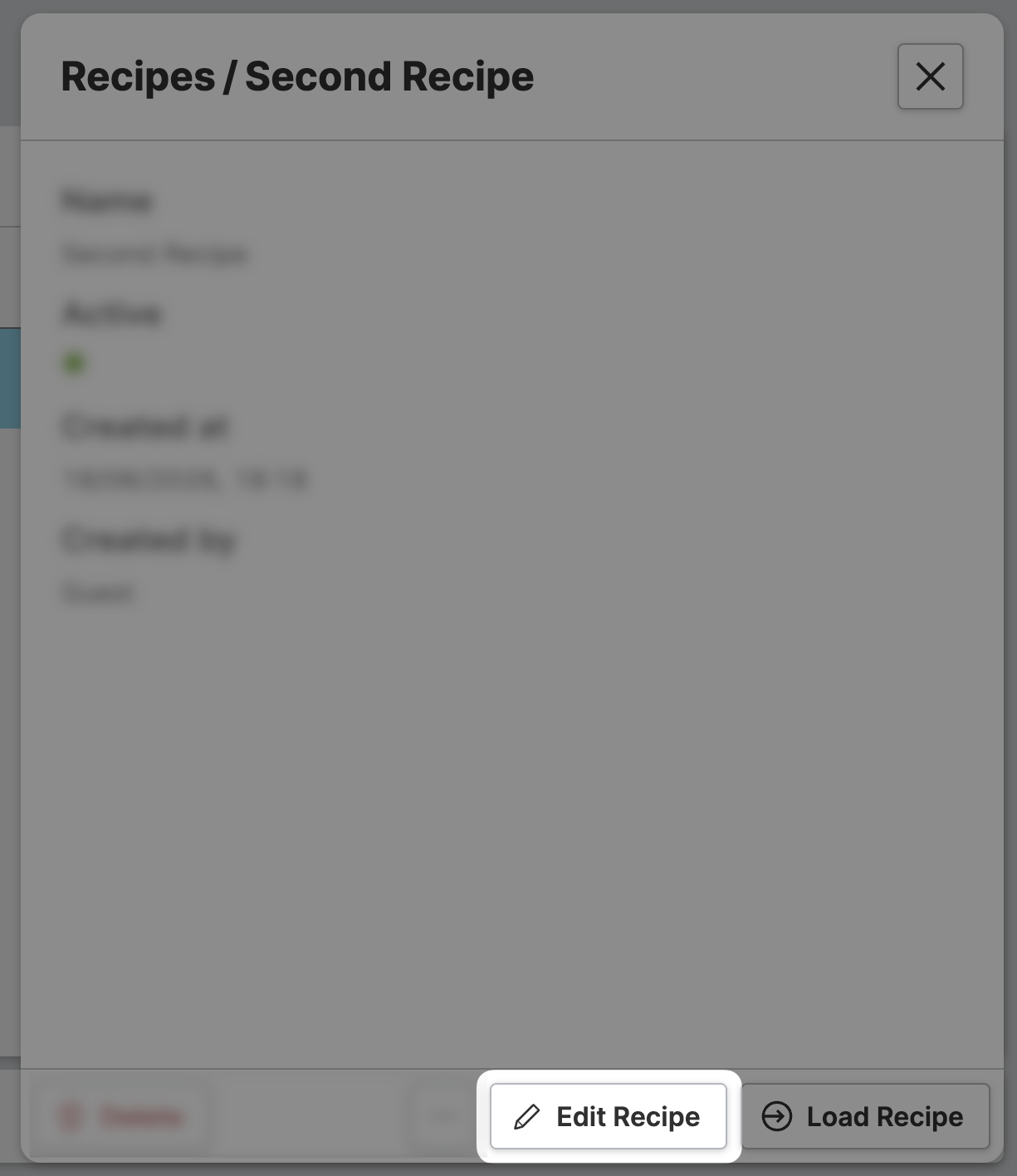
This adds an Edit Recipe button next to Load Recipe in the recipe
detail view.
Tip: Enable This Feature Using Roles
Since Enable is a
Dynamic Property you can also switch it to
Restrict To Users in order to only show the
Edit Recipe button to specific user roles.
2. Edit Parameters in the Table
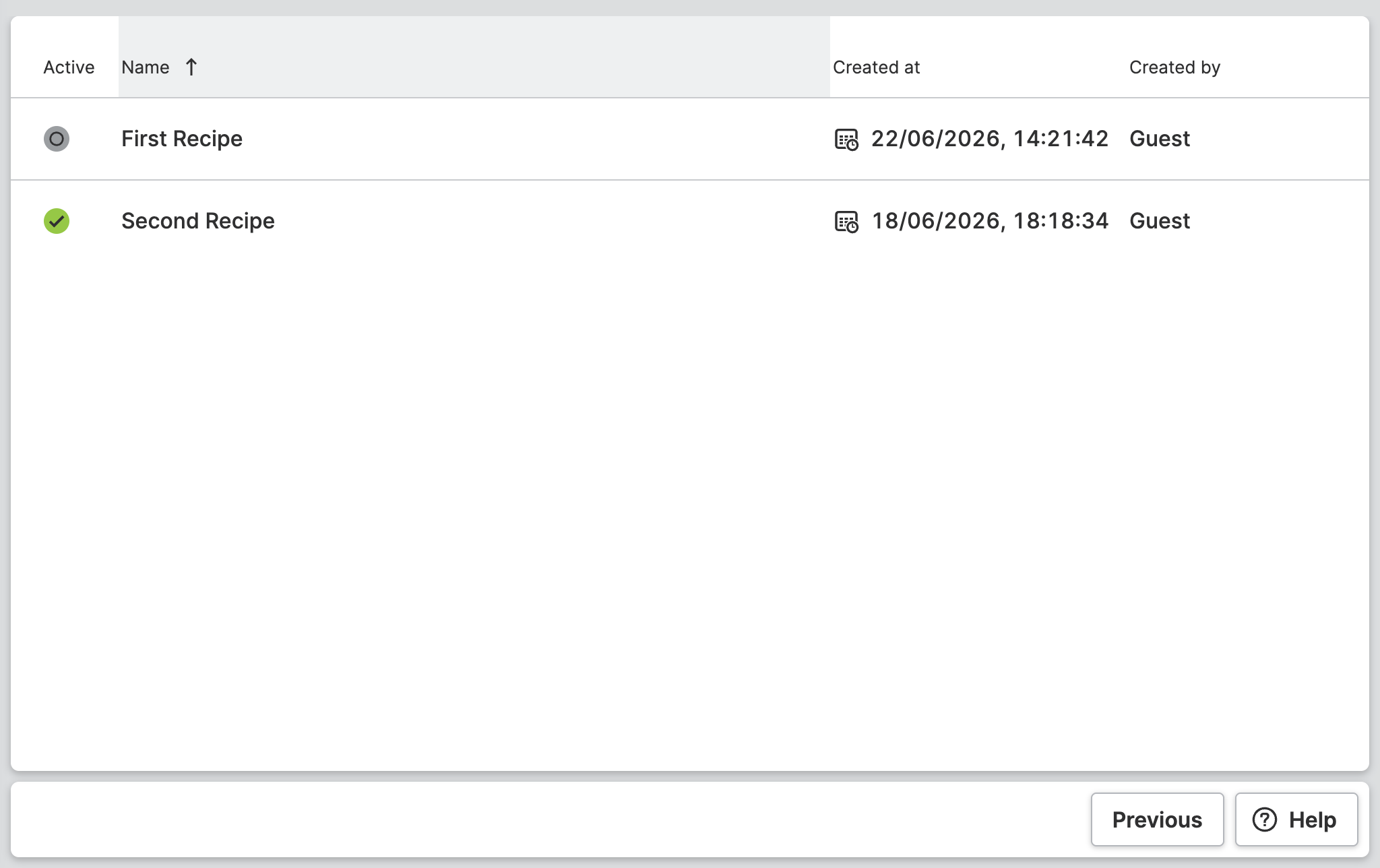
- Open a Recipe for Editing
Use the HMI Preview Panel and switch to Test
mode. Select a recipe from the list to open its detail view, then
click Edit Recipe.
- Compare and Edit Values
- Save Your Changes
Click Save Recipe to store your changes, or Cancel to discard
them.
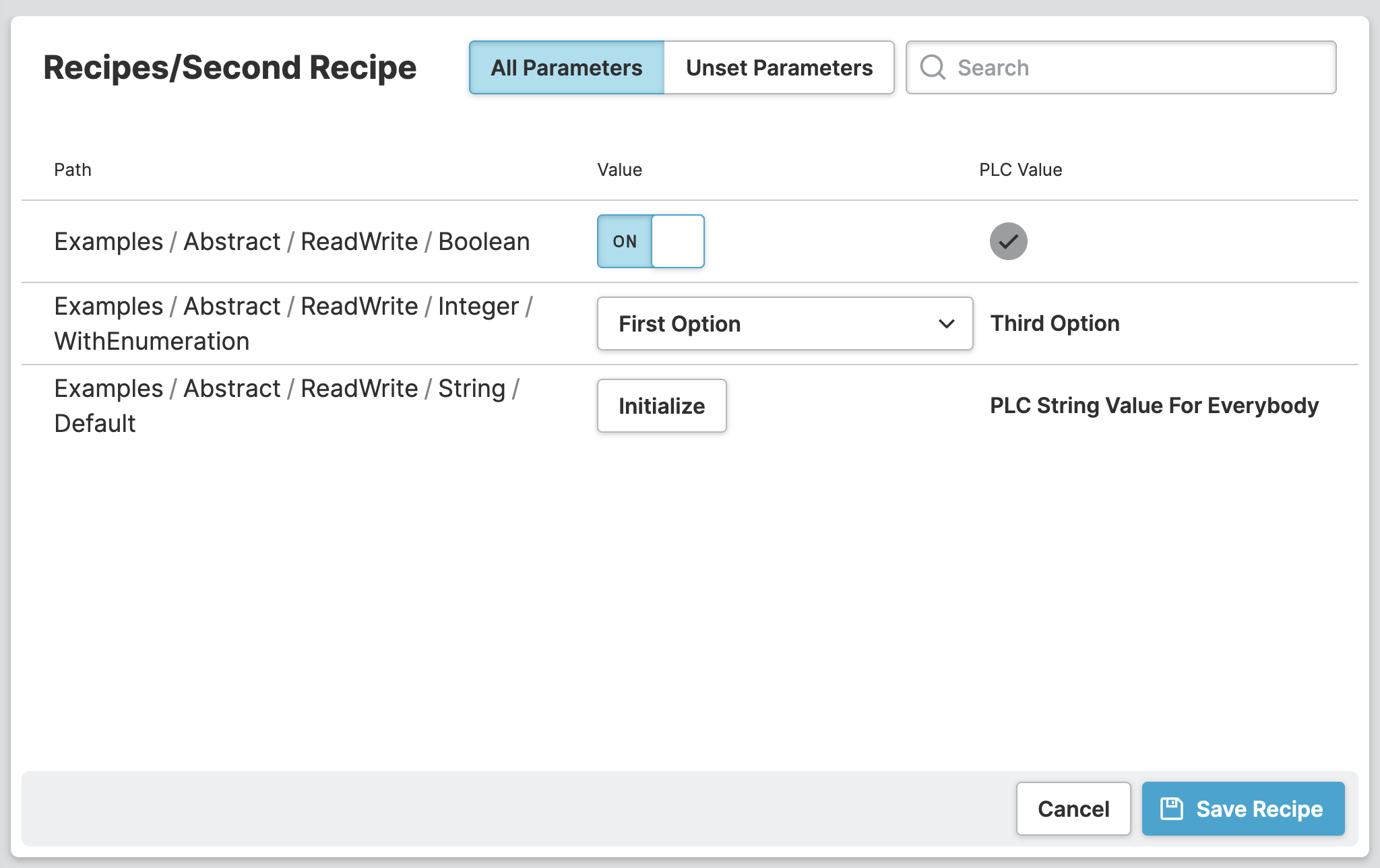
3. Handle Uninitialized Parameters
Recipes evolve over the life of a machine — new parameters get added to a Recipe Type both during development and later, once it's already in the field.
- Add Parameters
Use the
Data View or the
Recipes View to add additional parameters to a
Recipe Type.
The Data View can also be used to provide a fallback value for newly added parameters.
What Are Fallback Values?
If a recipe with an unset parameter is loaded onto the PLC — for
example via Load Recipe — HELIO uses this fallback value
automatically, without anyone having to open the Parameter Table
first.
- Filter for Unset Parameters
- Initialize the Value
Click Initialize to add a value for this parameter to this recipe. If a
fallback value has been configured, HELIO will use it. Otherwise, it
defaults to a valid neutral value. After initialization, you can edit the
value as you would with any other parameter.
That's it — your operators can now edit recipe parameters right in the HMI.