Layout
New This Feature Was Added In HELIO 26.2.0
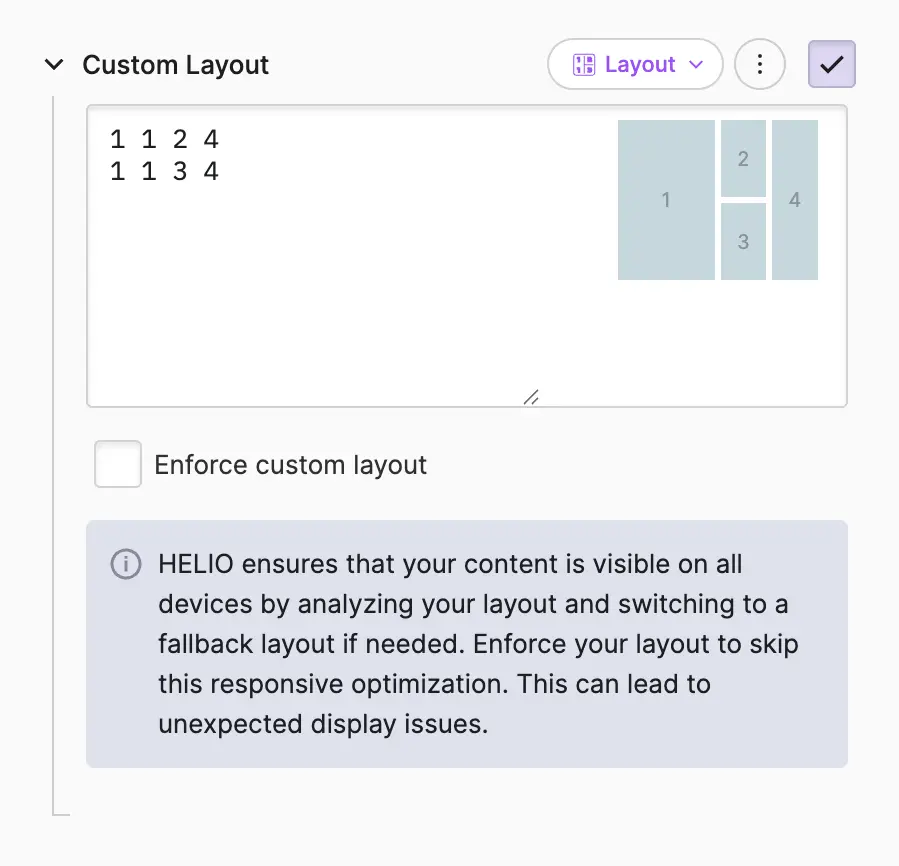
Use the Layout property to define a custom grid arrangement for the
elements on a Dashboard Page or inside an
Dashboard Widget.
Since Layout is a
Dynamic Property, you can wrap it in an
If Condition or
Switch to apply a different arrangement depending
on context, for example the current
Device Size or an active
URL Parameter Value.
Grid Syntax
You describe your layout using a simple syntax. This allows you to define a grid consisting of rows and columns. Each unique number becomes an element that is assigned in ascending order (1, 2, 3, …) to the elements you have added to your page or widget. Repeat the same number for adjacent cells to combine them into a single, larger cell for that element.
Take for example this layout:
  1 2
  3 3
It produces a 2x2 grid where the first element takes the top-left cell, the second element the top-right cell, and the third element spans the entire bottom row.
Responsive Optimization & Fallback Layouts
By default HELIO ensures that all content in your element can be displayed within the available space on all device sizes. To do this, HELIO measures the layout and, if necessary, switches to a fallback layout.
The custom layout always takes priority. However, if there isn't enough space available or the number of cells doesn't match the number of elements, the most suitable fallback layout is automatically applied instead.
Enforce Custom Layout
Enable this option to skip the responsive safety net HELIO provides by default. HELIO will then always render your definition exactly as written and stops enforcing minimum element sizes.
This can be useful when you're building a layout for one specific, known device and want precise control instead of HELIO's automatic responsive optimizations.
Enforced Layouts May Not Work on All Devices & Dimensions
Enforcing a layout can lead to unexpected display issues on devices or screen sizes that simply don't provide enough space for your elements.
Note that you can use a Switch condition to work around such issues and provide your own fallback mechanism. However, this naturally involves more manual effort.
Mismatched Element Count
Since the fallback mechanism no longer steps in, a mismatch between the number of cells and the number of elements in the tree is handled directly instead: cells without a matching element stay empty, and elements beyond the number of cells are not displayed.