IDE Authentication
About
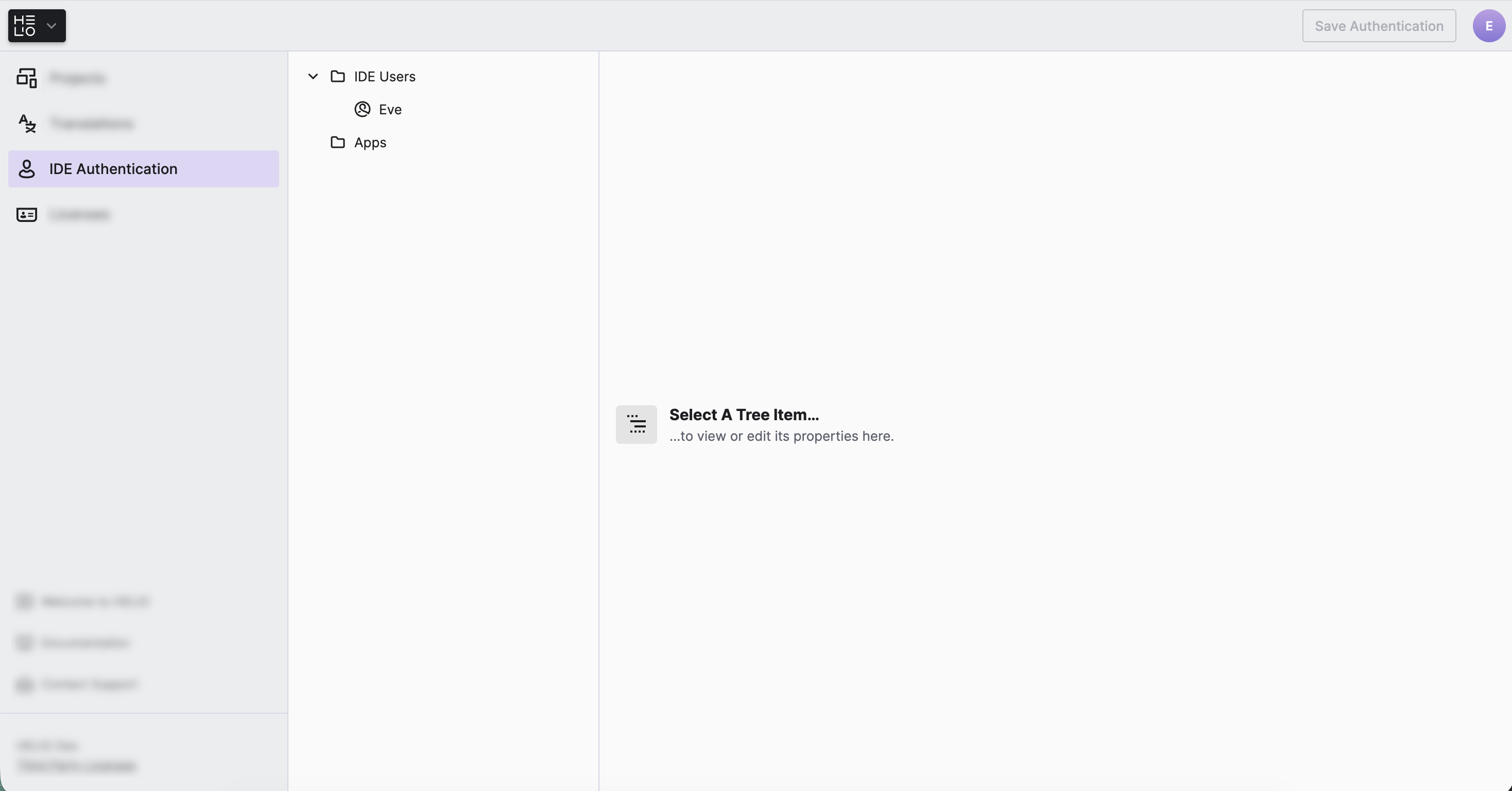
The IDE Authentication is the section that lets you create and edit IDE Users. Use it to grant other team members access to the HELIO IDE.
What's the difference between IDE & HMI Users?
Before we start, it is important to understand the difference between IDE Users and HMI Users in HELIO. Let's have a look at their differences:
| IDE Users | HMI Users | |
|---|---|---|
Who? | You and your team will using their | Once your HMI is deployed to the actual machine, the operators in the
factory will sign in as |
When? | While you are developing & engineering the HMI. | Once your HMI is deployed to the actual machine and running inside the factory. |
Where? | Use the IDE Authentication to define and configure IDE Users. | Use the HMI Users View of the Project Editor to define and configure Initial HMI Users & Roles for your project. |
Limitations |
| HMI users are only used for signing into an HMI. They can NOT be used to sign into the HELIO IDE. |
Adding IDE Users
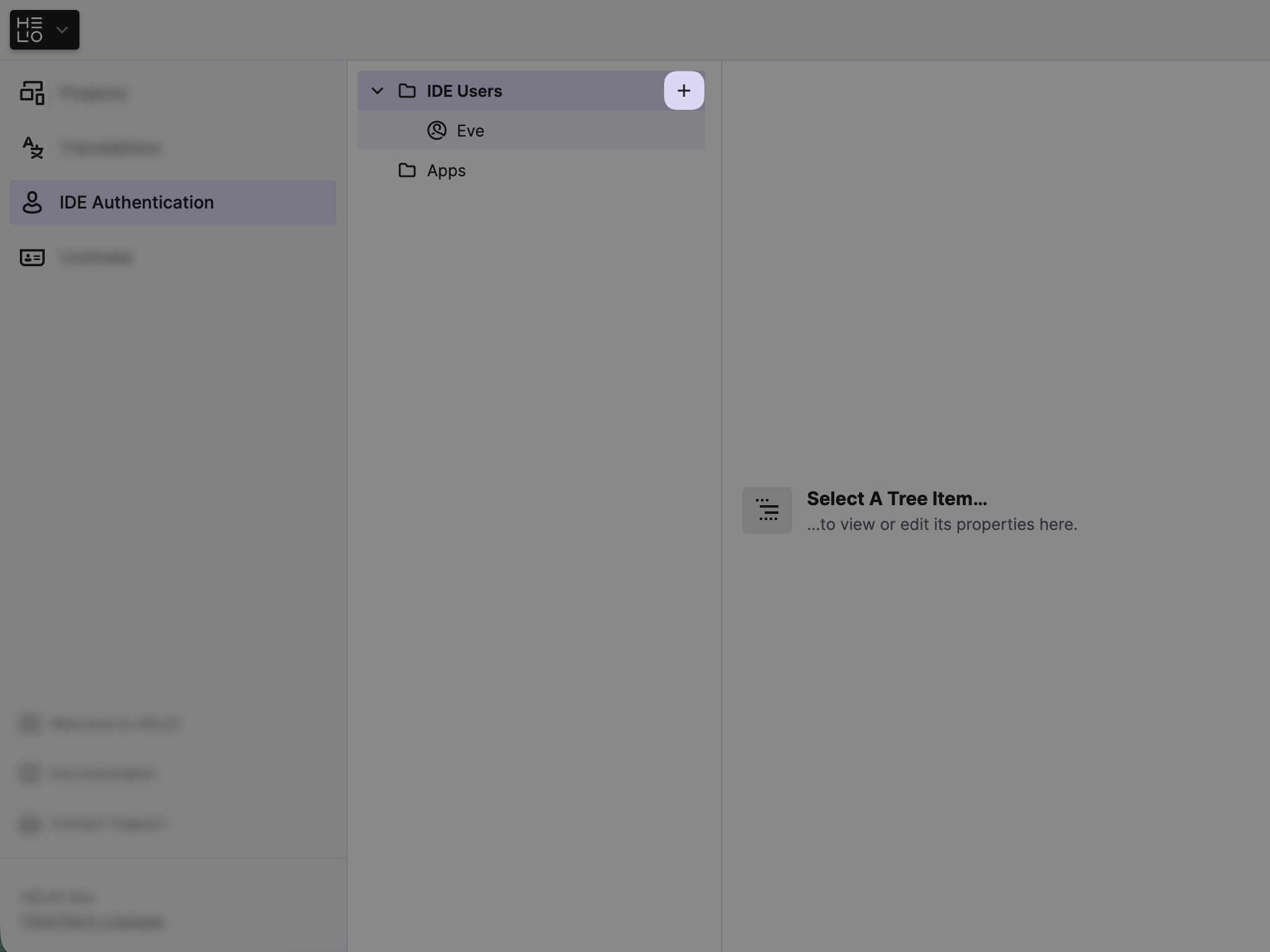
- Use the
+button to create new IDE Users. - Choose a
Usernamewhich will get used internally to identify the user. - Choose a
Display Namewhich will be displayed in the Sign In dialog. - Set a secure
Password. - Press
Saveto store the new IDE User. You can now sign in to the IDE with this user.
Registering Apps
Early Access
In order to be able to use the HELIO HTTP API to automate HELIO, you need to register an app first. The app will provide you with credentials to give scripts and applications safe programmatic access to HELIO via the API. You register an app here to receive the API key and secret that your integration needs.
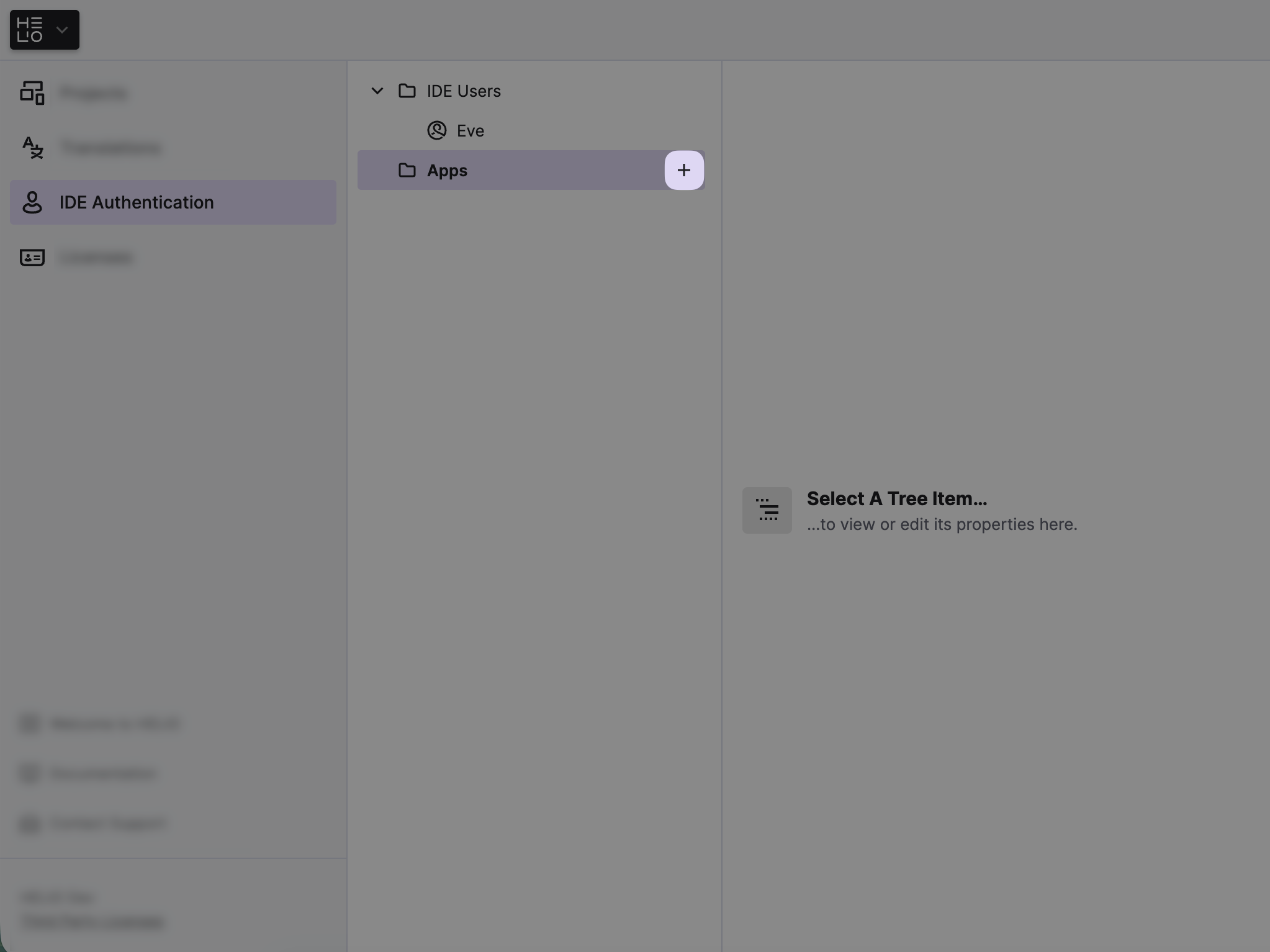
- Use the
+button to register a new App. - Choose a
Namewhich will get used internally to identify the App. - Copy the
API KeyandAPI Secretwhich will be displayed in the dialog. - Press
Download App Credentials and Closeto register the new App. - Set the Key and Secret within your
API App. You can now access the IDE using your App.
You will not be able to view the API Secret again after closing the
dialog. Be sure to save it to a secure location and/or download the
credentials.